安装与初次配置
字数: 0 字 时长: 0 分钟
1.安装 Git
1.1 macOS
bash
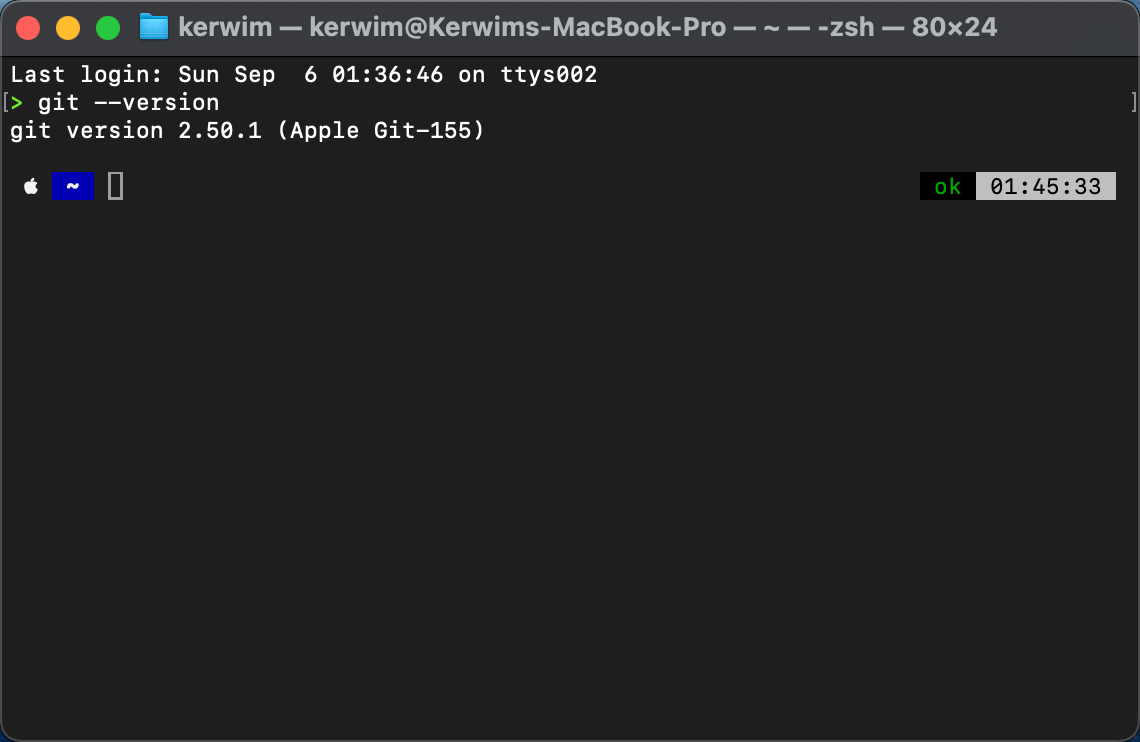
git --version如果系统没有 Git,可以通过 Xcode Command Line Tools 或 Homebrew 安装。
1.2 Windows
使用 Git for Windows。
参考: https://blog.csdn.net/mukes/article/details/115693833
1.3 Linux
使用发行版包管理器安装。
参考:https://blog.csdn.net/u012856866/article/details/125499320
2.操作空间
2.1 macOS
用自带的终端就可以了,但是我习惯用 iTerm2。
2.2 windows
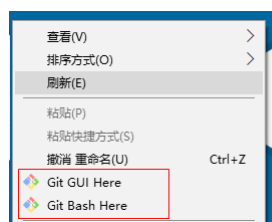
点击 Git Bash
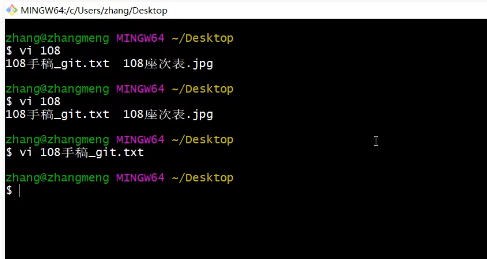
就会看到类似的图
3. 用户信息
3.1 配置用户信息
bash
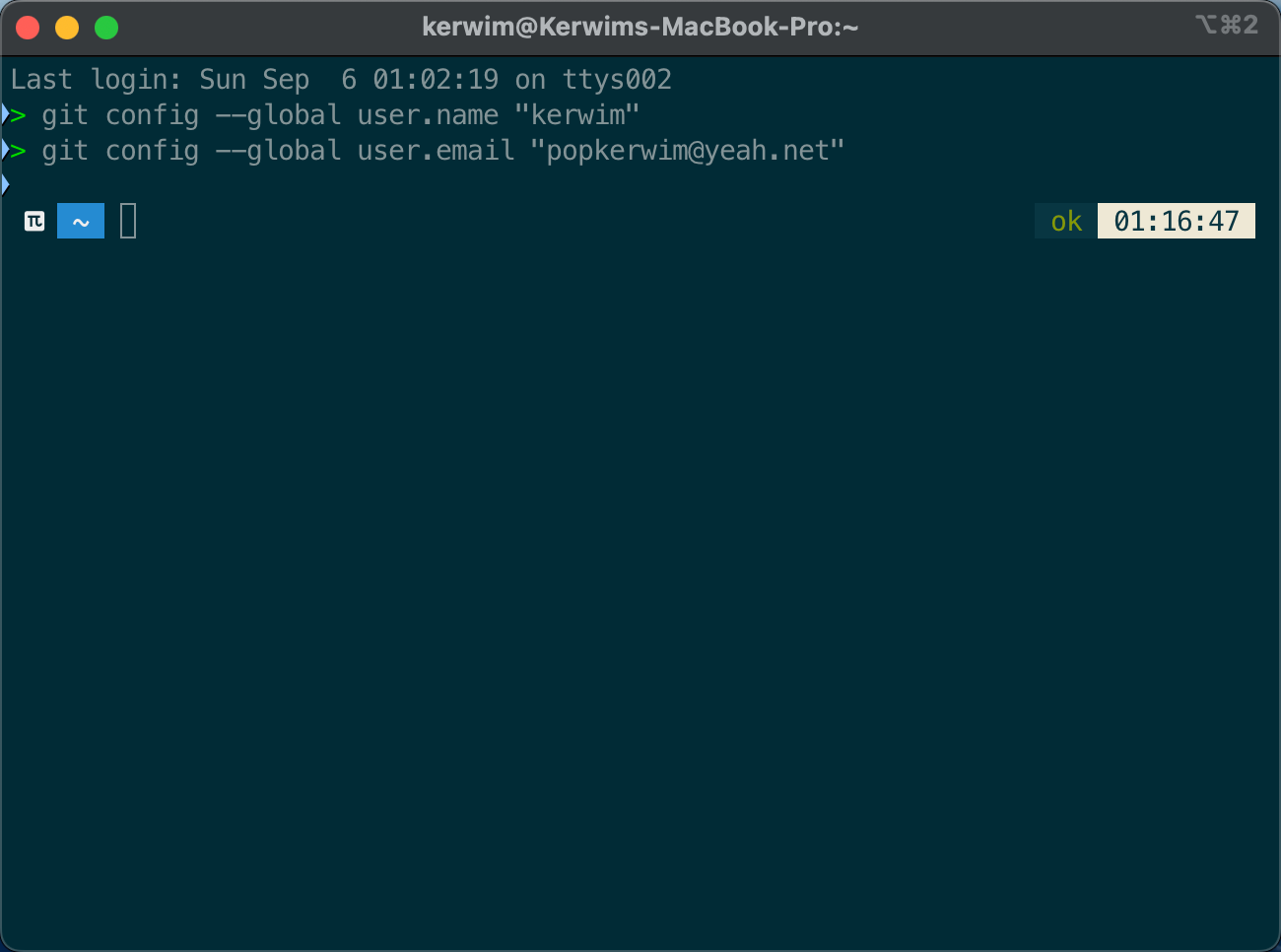
git config --global user.name "Your Name"
git config --global user.email "your@email.com"| 命令 | 作用 | 说明 |
|---|---|---|
git config --global user.name "Your Name" | 设置用户名 | 提交代码时记录作者名称,例如 Kerwim |
git config --global user.email "your@email.com" | 设置邮箱 | 提交代码时记录作者邮箱,GitHub 也可通过邮箱关联提交记录 |
--global | 全局配置 | 对当前电脑上的所有 Git 仓库生效 |
3.2 查看配置
bash
git config --list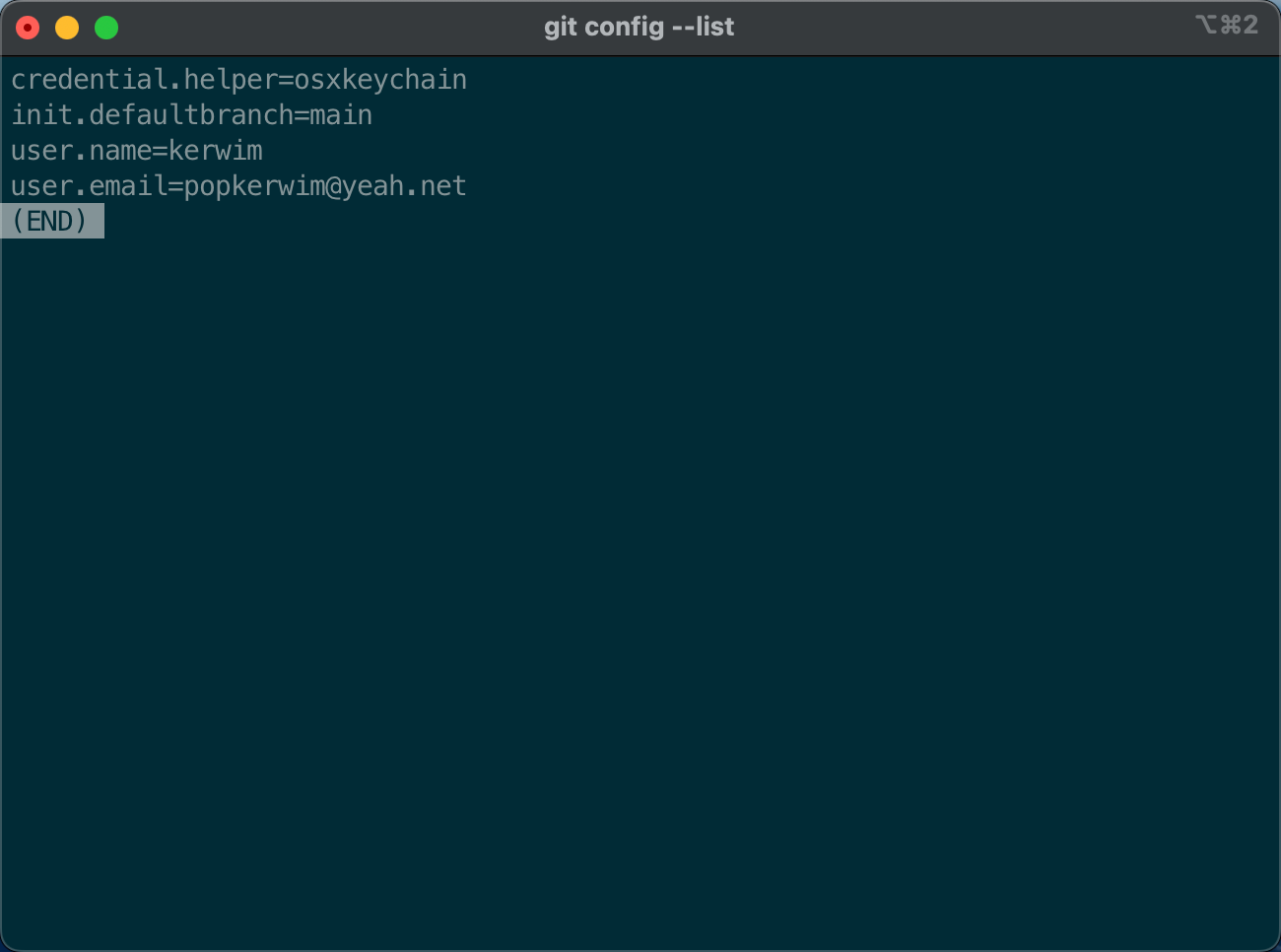
3.3 常用别名
bash
git config --global alias.st status
git config --global alias.co checkout
git config --global alias.br branch
git config --global alias.cm commit你可以把用 st 当做 status 的简写,后面查看状态只需要打 st 就可以不需要打完整的 status 了,因为我喜欢打全。
| 配置命令 | 中文意思 | 简写后 | 等价命令 |
|---|---|---|---|
git config --global alias.st status | 查看仓库当前状态 | git st | git status |
git config --global alias.co checkout | 切换分支 / 恢复文件 | git co | git checkout |
git config --global alias.br branch | 查看或管理分支 | git br | git branch |
git config --global alias.cm commit | 提交代码到本地仓库 | git cm | git commit |
3.4 默认分支名
bash
git config --global init.defaultBranch main
设置默认分支名字为 main
3.5 中文乱码处理
bash
git config --global core.quotepath false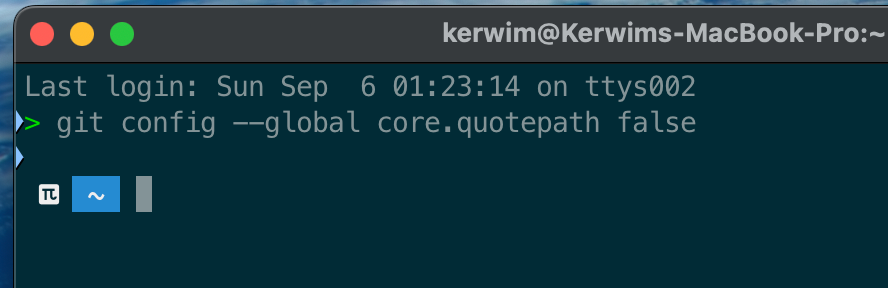
3.6 查看某个配置
bash
git config --global --get init.defaultBranch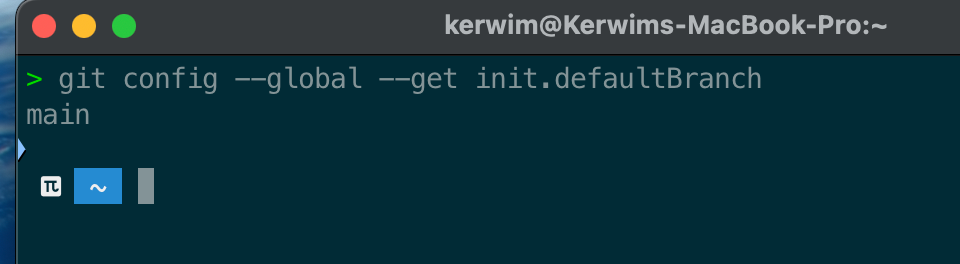
查看默认分支名字就是 main,没有用常见的 master,其实正常还是用 master 的。
3.7 换行符配置
macOS 默认这样配
bash
git config --global core.autocrlf inputwindows 默认这样配
bash
git config --global core.autocrlf true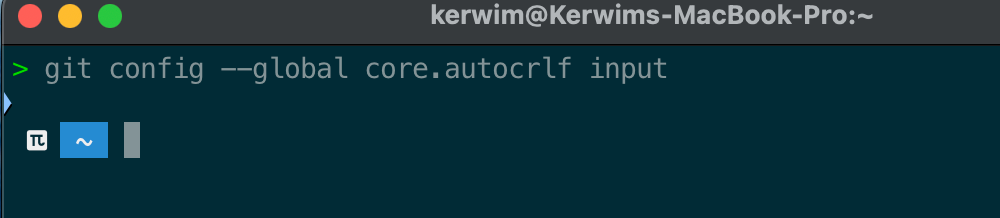
| 系统 | 常用换行符 | 推荐配置 | 提交时 | 检出时 |
|---|---|---|---|---|
| macOS | LF(\n) | git config --global core.autocrlf input | CRLF → LF | 保持 LF |
| Linux | LF(\n) | git config --global core.autocrlf input | CRLF → LF | 保持 LF |
| Windows | CRLF(\r\n) | git config --global core.autocrlf true | CRLF → LF | LF → CRLF |
core.autocrlf 用来处理不同操作系统之间的换行符差异。macOS 和 Linux 通常使用 LF,Windows 通常使用 CRLF;Git 会在提交和检出时自动转换,避免因为换行符不同产生大量无意义的代码变更。 |
3.8 查看配置来源
bash
git config --list --show-origin| 配置来源 | 配置项 | 当前值 | 作用 |
|---|---|---|---|
系统级 .../git-core/gitconfig | credential.helper | osxkeychain | 使用 macOS 钥匙串保存 Git 的 HTTPS 凭据 / Token |
系统级 .../git-core/gitconfig | init.defaultBranch | main | 新建 Git 仓库时默认使用 main 分支 |
用户级 ~/.gitconfig | user.name | kerwim | Git 提交时使用的作者名称 |
用户级 ~/.gitconfig | user.email | popkerwim@yeah.net | Git 提交时使用的作者邮箱 |
用户级 ~/.gitconfig | init.defaultBranch | main | 新建 Git 仓库时默认使用 main 分支 |
用户级 ~/.gitconfig | core.quotepath | false | 中文文件名直接显示中文,不转义成 \xxx |
用户级 ~/.gitconfig | core.autocrlf | input | 提交时将 CRLF 转为 LF,检出时不反向转换 |

3.9删除某个配置
bash
git config --global --unset init.defaultBranch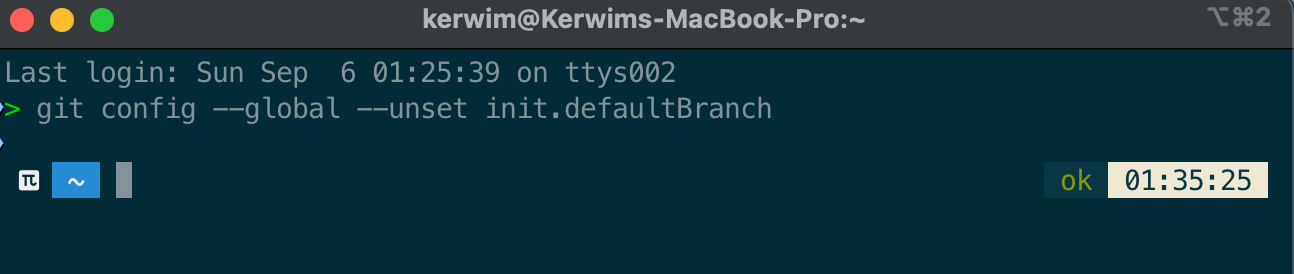
然后用git config --list重新查看
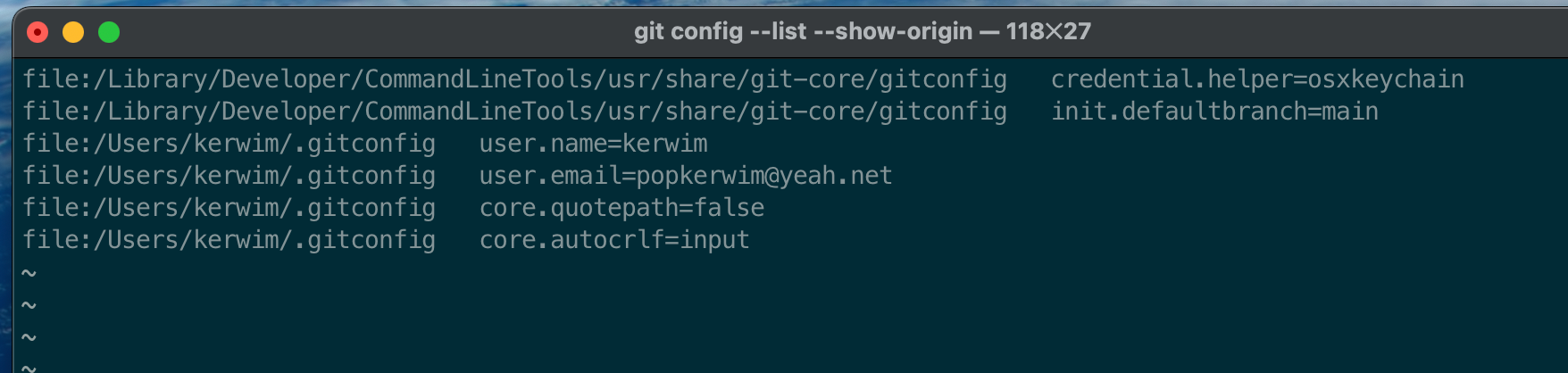
就把用户级的默认分支名称删掉了,但是系统级的还在
3.10 删除同名的所有配置
如果一个配置被重复设置,可以全部删除后重新配置。
bash
git config --global --unset-all init.defaultBranch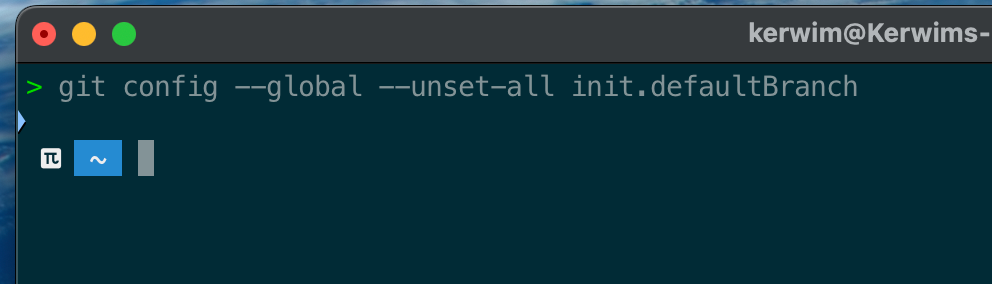
然后重新设置:
bash
git config --global init.defaultBranch master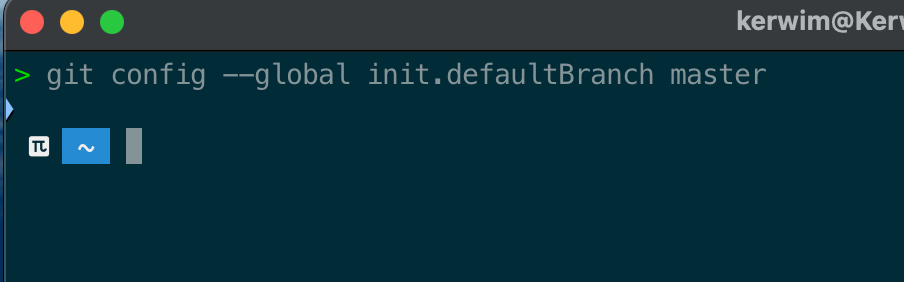
然后查看
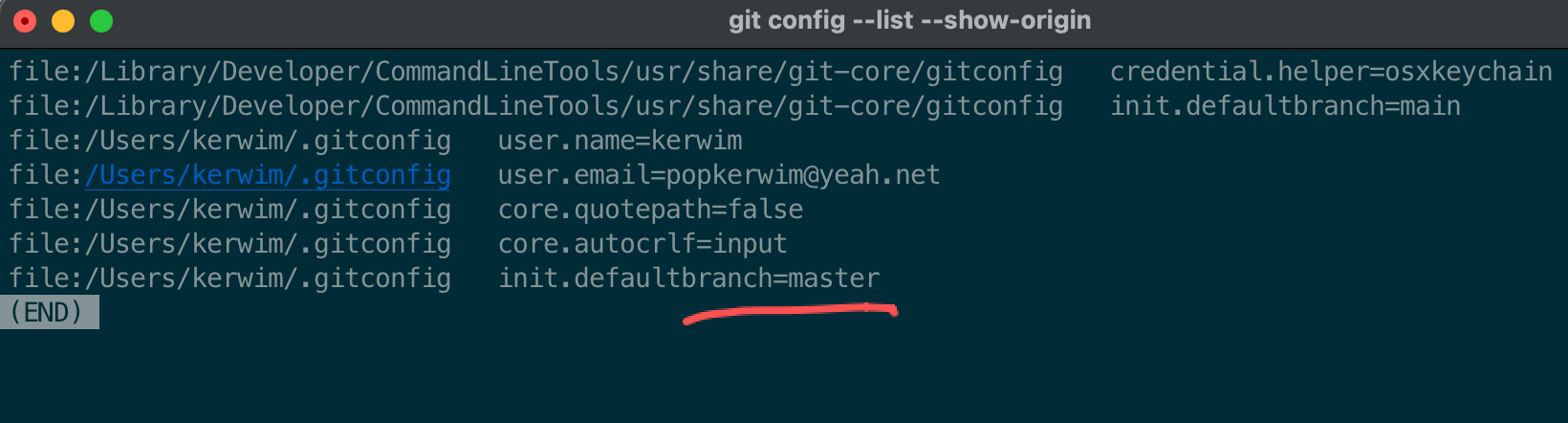
3.11 直接编辑全局配置文件
bash
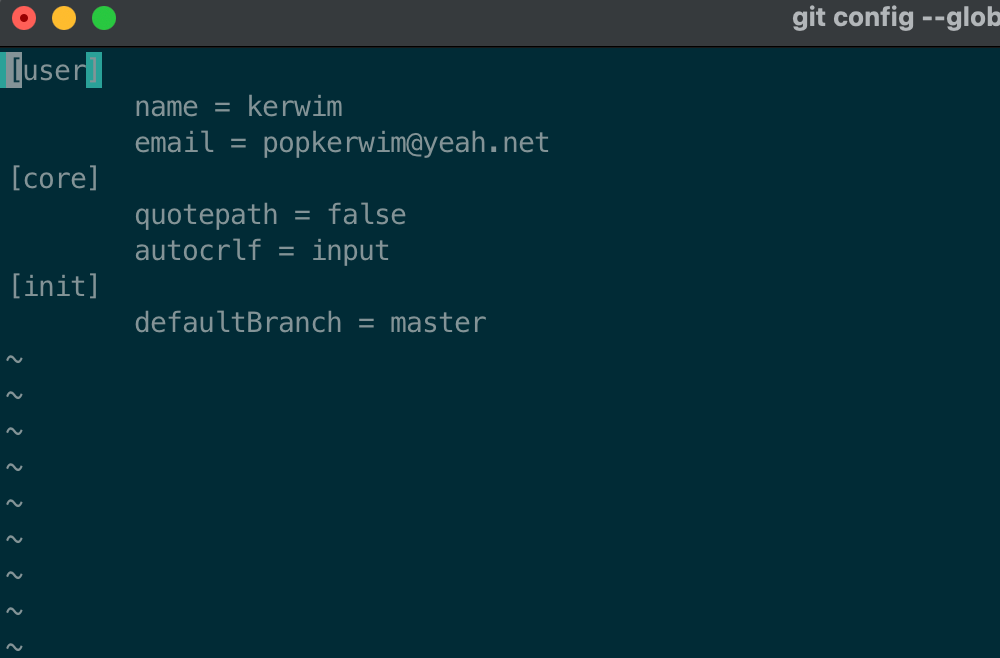
git config --global --edit